I remember the first time I set up a Raspberry Pi. I had no idea which operating system to pick or how to get it onto an SD card. Then I found software NOOBS. It changed everything. The whole process went from confusing to done in under twenty minutes.
NOOBS stands for New Out Of Box Software. It is an OS installation manager built specifically for the Raspberry Pi. You copy it to an SD card, plug the card into your Pi, power it on, and pick your operating system from a simple menu. No terminal commands. No flashing tools. Just a clean graphical installer that works first time.
Quick Summary Software NOOBS is the original easy OS installer for Raspberry Pi, created by the Raspberry Pi Foundation. It lets you install one or more operating systems from a simple boot menu. The Raspberry Pi Foundation archived NOOBS in February 2023 and now recommends Raspberry Pi Imager as the replacement. A community fork called PINN keeps the multi-OS boot functionality alive for users who need it. This guide covers what NOOBS does, how to install it, how it compares to current alternatives, and what you should use today.
Table of contents
- What Software NOOBS Actually Does
- The History of NOOBS for Raspberry Pi
- What NOOBS Offered That Made It Special
- How to Install Software NOOBS on an SD Card
- NOOBS vs Raspberry Pi Imager
- PINN: The Community Fork That Kept NOOBS Alive
- Three Real Situations Where NOOBS Made the Difference
- Common Mistakes People Make With NOOBS
- Which Tool Should You Use Today
- Where NOOBS Fits in Raspberry Pi History
- Conclusion
- FAQs
What Software NOOBS Actually Does
NOOBS does one job extremely well. It puts a friendly OS selection screen between you and an empty Raspberry Pi.
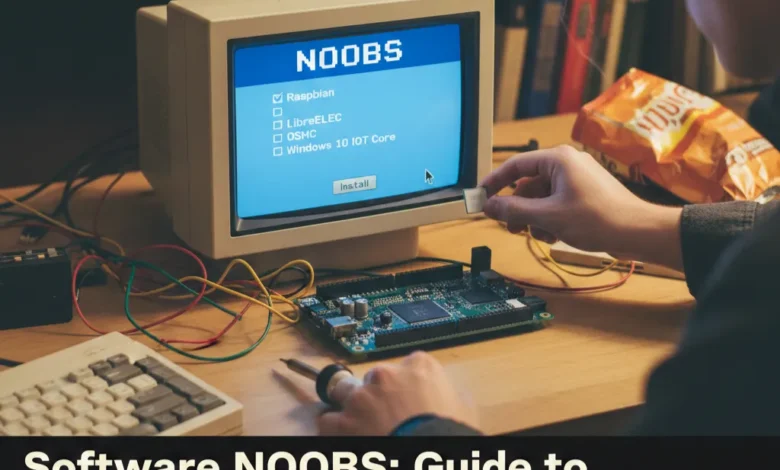
You power on your Pi with a NOOBS SD card inserted. A menu appears. You see a list of available operating systems tick the ones you want. Click on install. NOOBS handles the rest.
That simplicity mattered enormously when Raspberry Pi first launched. Most first-time users had never flashed a Linux image before. NOOBS removed that barrier completely. You not need a second computer running special software. Don’t need to understand disk imaging. You just needed to copy some files to an SD card.
Raspberry Pi NOOBS software also supported multi-boot setups. You could install Raspberry Pi OS alongside LibreELEC or RetroPie on the same card. NOOBS managed the boot menu automatically. That feature made it genuinely useful even for experienced users who wanted flexible setups.
The History of NOOBS for Raspberry Pi
The Raspberry Pi Foundation released NOOBS in 2013. They designed it specifically to lower the barrier to entry for new users.
Before NOOBS, setting up a Raspberry Pi required downloading a disk image and writing it to an SD card using command-line tools or third-party software. That process intimidated beginners. It also caused errors when people used the wrong tools or wrong settings.
NOOBS solved both problems. It made the setup process visual and forgiving. If something went wrong, you could re-run the installer without starting from scratch on your computer.
The software grew steadily over the years. The Raspberry Pi Foundation added more OS options, improved the network installation feature, and refined the interface. By the time Raspberry Pi became a mainstream educational and hobbyist platform, NOOBS was the standard starting point for millions of users worldwide.
In February 2023, the Raspberry Pi Foundation archived the NOOBS GitHub repository. They stopped active development. Raspberry Pi Imager became the official recommended tool instead.
What NOOBS Offered That Made It Special
I want to explain the features that made raspberry pi NOOBS software genuinely different from just copying an image to an SD card.
Graphical OS Selection Menu
NOOBS displayed available operating systems in a clean visual menu on first boot. You selected what you wanted by clicking checkboxes. No command-line knowledge required. This was the feature that made Raspberry Pi genuinely accessible to beginners and children in classrooms.
Multi-OS Installation
NOOBS let you install multiple operating systems on a single SD card. It partitioned the card automatically. On each boot it presented a menu asking which OS to start. This made experimentation easy. You could run Raspberry Pi OS for general use and boot into RetroPie for gaming without swapping SD cards.
Network Installation
NOOBS included a network install option. If you connected your Pi to the internet before the first boot, NOOBS displayed additional operating systems available for download. This meant the SD card only needed to hold NOOBS itself — not the full OS images. It saved download time during the initial setup phase.
Recovery and Reinstall
NOOBS kept a recovery partition on the SD card. If your OS installation broke or became corrupted, you could hold Shift during boot to return to the NOOBS menu. You reinstalled your OS without touching your computer. That recovery feature saved countless hours for beginners who accidentally broke their installations.
How to Install Software NOOBS on an SD Card
Even though Raspberry Pi Foundation no longer actively develops NOOBS, the installation process still works for older Pi models and legacy projects. Here is exactly how I do it.
What you need:
- A microSD card with at least 8GB capacity (Class 10 recommended)
- A computer with a microSD card reader
- A Raspberry Pi (any model up to Pi 4)
- A stable internet connection for downloading
The installation process:
Go to the Raspberry Pi downloads archive at downloads.raspberrypi.org/NOOBS/images. Scroll to the bottom of the page. Find the most recent NOOBS image listed there. Click the folder link for that version. Download the ZIP file the one without any extra extension in the filename.
Wait for the download to finish. The file size runs around 2 to 3GB so it takes a few minutes on most connections.
Open the downloaded ZIP file. Extract all the contents. You will see a folder containing multiple files and subfolders bootcode.bin, recovery.img, RECOVERY_FILES, and others.
Insert your microSD card into your computer. Format it as FAT32. On Windows, right-click the drive in File Explorer and choose Format. On Mac, use Disk Utility and choose MS-DOS (FAT) as the format.
Open the extracted NOOBS folder. Select all files and folders inside it. Copy everything directly to the root of your formatted SD card. Do not copy the NOOBS folder itself — copy the contents inside it.
Wait for the copy to finish. Safely eject the SD card from your computer.
Insert the SD card into your Raspberry Pi. Connect a monitor, keyboard, and power supply. Power on the Pi.
The NOOBS menu appears within a few seconds. Select your operating system from the list. Click Install. Wait for the installation to complete usually ten to twenty minutes. Your Pi reboots into the fresh OS automatically.
NOOBS vs Raspberry Pi Imager
This is the part every other article skips or handles vaguely. I want to be direct about it.
The Raspberry Pi Foundation archived software NOOBS. They did not update it further. They now recommend Raspberry Pi Imager as the official tool for all new users.
Raspberry Pi Imager is a desktop application you run on your computer Windows, Mac, or Linux. You choose your Pi model, choose your operating system, choose your SD card, and click Write. The application downloads the OS, writes it to the card, and verifies the write automatically. It also lets you configure Wi-Fi, hostname, username, password, and SSH settings before writing features NOOBS never offered.
| Feature | Software NOOBS | Raspberry Pi Imager |
|---|---|---|
| Setup location | On the Pi itself | On your computer |
| Multi-OS boot | Yes | No (single OS per card) |
| Pre-configuration | No | Yes (Wi-Fi, SSH, username) |
| Recovery partition | Yes | No |
| Active development | No (archived 2023) | Yes (actively maintained) |
| Beginner friendliness | Very high | Very high |
| Works offline | Yes (basic version) | No |
| Supported Pi models | Up to Pi 4 | All current models |
The honest comparison: Raspberry Pi Imager is the better choice for most users today. It is faster to set up, it supports all current Pi models properly, and it stays actively maintained. NOOBS made more sense when users lacked reliable broadband and needed multi-boot flexibility without a second computer.
PINN: The Community Fork That Kept NOOBS Alive
When the Raspberry Pi Foundation archived NOOBS, a community developer maintained the multi-boot functionality through a fork called PINN PINN Is Not NOOBS.
I found PINN particularly valuable for three specific use cases. Educational settings where teachers want students to choose between different OS environments on the same device. Retro gaming setups where users want Raspberry Pi OS and RetroPie on a single card. Development environments where testers need to switch between OS versions quickly without reflashing.
You install PINN exactly the same way you install NOOBS. Download the PINN release from its GitHub repository. Extract the contents. Copy everything to a formatted SD card. Boot your Pi. The familiar multi-OS selection menu appears.
Three Real Situations Where NOOBS Made the Difference
A Teacher Who Got a Classroom Running in One Afternoon
I spoke to a secondary school teacher who received thirty Raspberry Pis for a computing class. She had no IT support on hand and limited technical experience. She downloaded raspberry pi NOOBS software the night before, copied it to thirty SD cards using a USB hub and a card reader, and handed them to students the next morning. Every student booted into the OS selection screen independently. The class was running within thirty minutes of the lesson starting. No individual imaging required. No command-line instructions needed. NOOBS handled every device the same way.
A Hobbyist Who Ran Three Operating Systems on One Card
I know a Raspberry Pi hobbyist who uses his Pi 3 for three completely different purposes. He runs Raspberry Pi OS for general computing and programming. Boots into LibreELEC for media playback. He starts RetroPie for retro gaming sessions. Software NOOBS manages the boot menu. He presses Escape during startup, selects his environment, and the Pi loads it within a minute. He told me this setup saved him from carrying multiple SD cards and constantly swapping them.
A Student Who Recovered a Broken Installation in Ten Minutes
A university student I know accidentally deleted critical system files while following a tutorial incorrectly. Her Raspberry Pi OS installation became unbootable. Without NOOBS, she would have needed to reimage the card from scratch on her laptop. With NOOBS on the card, she held Shift during boot, returned to the installer menu, selected Raspberry Pi OS again, clicked reinstall, and had a working system in under ten minutes. The recovery partition saved her an afternoon of frustration.
Common Mistakes People Make With NOOBS
Copying the folder instead of its contents. This is the most common error I see. People copy the NOOBS folder to the SD card rather than the files inside it. The Pi cannot find the bootloader. Nothing happens on power-on. Always open the extracted NOOBS folder and copy everything inside it directly to the SD card root.
Using an SD card smaller than 8GB. NOOBS itself takes around 35MB. But the operating systems it installs require significant space. Raspberry Pi OS with the full desktop needs around 4GB. A multi-OS setup needs 16GB minimum. Use an 8GB card for single OS installs and 16GB or larger for multi-boot setups.
Skipping the FAT32 format step. NOOBS requires a FAT32 formatted card to boot correctly. Cards over 32GB often format as exFAT by default on Windows. This prevents NOOBS from booting. Always verify the format is FAT32 before copying the files.
Using NOOBS on a Pi 5. The Raspberry Pi 5 requires Raspberry Pi Imager. NOOBS does not support the Pi 5 hardware. If you own a Pi 5, use Raspberry Pi Imager to install your operating system. NOOBS works on Pi models up to and including the Pi 4.
Expecting active support. NOOBS is archived. The Raspberry Pi Foundation does not fix bugs or add features to it anymore. If you encounter a problem with a newer OS version on NOOBS, use PINN or switch to Raspberry Pi Imager instead.
Also Read: Shotscribus Software Upgrade: Guide to Better Performance
Which Tool Should You Use Today
I want to give you a direct recommendation rather than leaving you to figure it out from the comparison table.
Use Raspberry Pi Imager if: You own a Raspberry Pi 4 or newer. You want the officially supported experience. You only need one operating system per SD card. Use if you want to pre-configure Wi-Fi and SSH before first boot. You are setting up a Pi for the first time in 2024 or later.
Use PINN if: You want multi-OS boot on a single SD card. You are running a Pi 3 or Pi 4 and need the NOOBS-style recovery partition. You are setting up educational environments where students need OS choice flexibility.
Use NOOBS if: You are maintaining a legacy Pi project that already uses it. You specifically need an older OS version that NOOBS supports but Imager does not. You are working in an offline environment and have an existing NOOBS SD card setup.
For most people starting fresh today, Raspberry Pi Imager is the right answer. It is faster, better supported, and works with all current hardware.
Where NOOBS Fits in Raspberry Pi History
NOOBS played a specific and important role in making Raspberry Pi what it is today. It removed the biggest barrier between a curious beginner and a working computer.
Before NOOBS, you needed to know what disk imaging meant. You needed a second computer with the right software. You needed to be comfortable with command lines or third-party tools. That knowledge requirement excluded millions of potential users especially children in classrooms and adults with no technical background.
NOOBS eliminated those requirements. It made the Pi genuinely accessible to anyone who could follow three steps: copy some files, insert a card, power on a computer. That accessibility drove the adoption that turned Raspberry Pi into the most popular single-board computer in history.
Raspberry Pi Imager carries that simplicity forward for the current generation of users. But NOOBS built the foundation. Every beginner who started with NOOBS in benefited from a decision the Raspberry Pi Foundation made specifically to lower barriers rather than impress technical users.
Conclusion
Software NOOBS changed how millions of people started their Raspberry Pi journey. It turned a technical process into a simple one which made multi-OS boot accessible to beginners. It kept recovery options on the card itself. For its time, it was exactly the right tool.
Today, Raspberry Pi Imager handles most of what NOOBS did for new users, with better support for current hardware and active development behind it. PINN keeps the multi-boot functionality alive for users who specifically need it. Knowing what NOOBS was, how it worked, and where it fits today makes you a more informed Pi user whether you are setting up your first Pi or maintaining a legacy project that still relies on it.
FAQs
What does NOOBS stand for and what does it do?
NOOBS stands for New Out Of Box Software. It is an OS installation manager created by the Raspberry Pi Foundation for Raspberry Pi computers. You copy it to a microSD card, insert the card into your Pi, and power on.
Is NOOBS still supported in 2024?
No. The Raspberry Pi Foundation archived the NOOBS GitHub repository in February 2023. They no longer update or support it officially.
How do I install NOOBS on a microSD card?
Download the NOOBS ZIP file from the Raspberry Pi downloads archive. Extract the ZIP file on your computer. Format a microSD card as FAT32. Copy all the files and folders from inside the extracted NOOBS folder directly to the root of the formatted card.
What is the difference between NOOBS and Raspberry Pi Imager?
NOOBS runs on the Raspberry Pi itself during first boot. You copy it to an SD card and the Pi handles the OS installation. Raspberry Pi Imager runs on your computer and writes the OS directly to the SD card before you insert it into your Pi.
What is PINN and how does it relate to NOOBS?
PINN stands for PINN Is Not NOOBS. It is a community-maintained fork of NOOBS software that continues development after the Raspberry Pi Foundation archived the original.