
I ran into error 207 AMD software after updating my Radeon drivers on a fresh Windows 11 install. The installer finished. It said successful. Then that message appeared. I had no idea what to do next.
If you are in the same situation, this guide fixes it. I cover every working solution from the fastest one-minute fix to the full clean install process.
Quick Summary: Error 207 AMD software means the AMD Adrenalin installer completed successfully but Windows Device Manager detected a problem with your graphics device at the same time. The software installed correctly. Windows blocked or disabled the GPU driver in the background. This usually happens because Windows Update conflicted with your AMD driver, your GPU got disabled in Device Manager, or old driver files interfered with the new installation. It does not mean your graphics card is broken. The fixes below resolve it in most cases within minutes.
Table of contents
- What Is Error 207 AMD Software Full Error Message
- What Causes Error 207 AMD Software Installer
- Fix 1 Enable Your AMD GPU in Device Manager
- Fix 2 Use the AMD Software Compatibility Tool
- Fix 3 Reinstall AMD Software with Factory Reset Option
- Fix 4 Clean Remove Old Drivers with AMD Cleanup Utility
- Fix 5 Use DDU in Safe Mode for a Deep Clean
- Fix 6 Disable Driver Signature Enforcement
- Fix 7 Update Windows Before Reinstalling AMD Software
- AMD Software Installer Installation Completed: What It Means
- AMD Software Error 207 vs Other AMD Installer Errors
- Three Real Situations Where Error 207 AMD Software Appears
- Common Mistakes When Fixing Error 207 AMD Software
- What to Do If Error 207 AMD Software Keeps Coming Back
- Conclusion
- FAQs
What Is Error 207 AMD Software Full Error Message
The exact error message reads:
“Error 207 AMD Software installation completed successfully but Windows detected a potential issue with your graphics device.”
That message confuses most users. It says two things at once. Installation completed successfully. But Windows detected a problem. Both statements are true at the same time.
Here is what actually happened. The AMD Software: Adrenalin Edition installer finished its job correctly. It placed all the driver files on your system. But when Windows tried to activate the driver for your GPU, it hit a conflict. Windows Device Manager blocked or disabled the display adapter. The driver installed but cannot run.
Error 207 is not a failed installation. It is a post-installation conflict between the AMD driver and Windows. That distinction matters because the fix targets Windows not the AMD installer itself.
What Causes Error 207 AMD Software Installer
Understanding the cause helps you pick the right fix first.
GPU disabled in Device Manager. This is the most common cause. Windows sometimes disables the AMD display adapter automatically after a driver update. The driver installs but the device is off. Re-enabling it fixes the error immediately in most cases.
Windows Update conflict. Windows Update installs its own generic display driver. This can overwrite or block your AMD driver during or after installation. The AMD software finishes installing. Windows then replaces key driver files with its own version. Error 207 appears on the next launch.
Leftover files from a previous driver installation. Old AMD driver files, registry entries, or configuration data from a previous version interfere with the new installation. The new driver partially installs but cannot fully replace the old one.
Incompatible AMD software version. You installed an AMD Software package that does not match your specific GPU model or Windows version. The installer runs and finishes. Windows then flags the incompatible driver.
Corrupted system files or missing DLL files. DirectX components, Visual C++ redistributables, or Windows system files are corrupted. The AMD driver depends on these files to load. When they are missing or damaged, error 207 appears even after a clean driver install.
Antivirus interference. Some antivirus software blocks AMD driver files during installation. It treats driver components as suspicious. The installation completes but key files get quarantined.
BIOS or UEFI settings conflict. Settings like CSM mode, Secure Boot, or iGPU priority in your system BIOS can prevent the AMD driver from initialising correctly after installation.
Fix 1 Enable Your AMD GPU in Device Manager
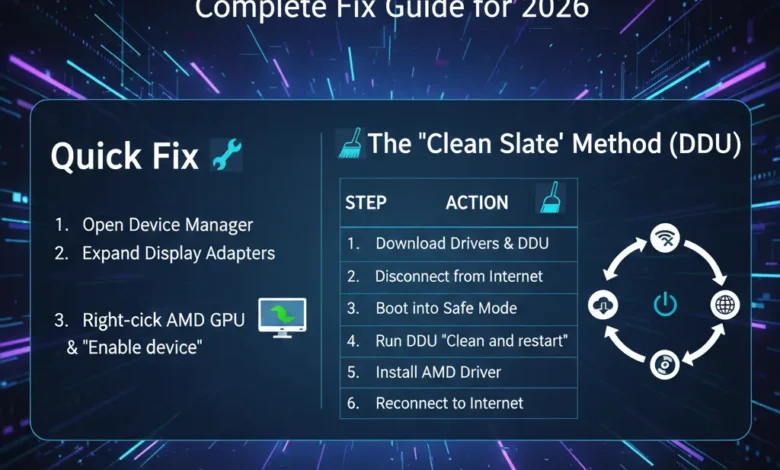
This is the fastest fix. Try this first. It resolves error 207 AMD software in most cases within two minutes.
Right-click the Start button. Select Device Manager from the menu. Find the Display adapters section. Click the arrow to expand it. Look at your AMD GPU entry. A disabled GPU shows a small down-arrow icon on its icon.
If you see the down-arrow icon, right-click your AMD graphics card. Select Enable device. Windows re-enables the GPU immediately.
Restart your computer after enabling the device. Open AMD Software: Adrenalin Edition. Check whether error 207 still appears.
If the GPU shows a yellow warning triangle instead of a down-arrow, your driver is corrupted rather than disabled. Move to Fix 2 or Fix 3 below.
Fix 2 Use the AMD Software Compatibility Tool
AMD provides a free tool specifically designed to detect and fix driver compatibility problems. This tool resolves error 207 AMD software installer issues caused by version mismatches.
Go to the official AMD website at amd.com. Navigate to the Drivers and Support section. Find and download the AMD Software Compatibility Tool. Run the tool on your system.
The tool scans your GPU model and your Windows version. It identifies whether your current AMD Software package matches your hardware. It then recommends the correct driver version and downloads it automatically.
Follow the tool’s recommended installation. Restart your PC when the installation finishes. Open Device Manager and confirm your AMD GPU shows no warning icon.
Use this fix if you installed AMD Software and are unsure whether the version matches your specific GPU or Windows build.
Fix 3 Reinstall AMD Software with Factory Reset Option
If enabling the GPU in Device Manager did not work, reinstall the AMD driver using the Factory Reset option. This removes all old AMD settings and files before installing fresh.
Go to Windows Settings. Open Apps and then Installed Apps. Find AMD Software: Adrenalin Edition in the list. Click Uninstall and follow the prompts. Restart your PC after uninstalling.
Now go to the official AMD website. Download the latest recommended driver for your specific graphics card model. Run the installer. When the installer opens, look for Additional Options or a Factory Reset checkbox. Enable Factory Reset before proceeding.
Factory Reset clears all previous AMD driver settings and configuration files. It ensures the new installation starts completely clean. Complete the installation and restart your PC.
Open AMD Software after restart and check whether error 207 AMD software has cleared.
Fix 4 Clean Remove Old Drivers with AMD Cleanup Utility
If error 207 persists after a standard reinstall, old driver remnants are likely causing the conflict. Use the AMD Cleanup Utility to remove every AMD driver file from your system before reinstalling.
Go to the AMD support website. Search for AMD Cleanup Utility and download it. Close all running applications before running the tool. Run the AMD Cleanup Utility as administrator.
Your screen may flicker during the process. Resolution may drop temporarily. This is normal. The tool removes all AMD driver files, registry entries, and configuration data completely.
Restart your computer when the tool finishes. Download the latest AMD Software package from the official AMD website. Install it fresh on the clean system. Restart after installation and check for error 207.
This fix works in the majority of persistent error 207 AMD software cases where standard reinstallation failed.
Fix 5 Use DDU in Safe Mode for a Deep Clean
Display Driver Uninstaller (DDU) is a third-party tool that removes GPU drivers more completely than the AMD Cleanup Utility in some cases. Use this fix when all previous methods failed.
Download DDU from its official site at guru3d.com. Do not run it yet.
Boot into Safe Mode. Press and hold Shift while clicking Restart from the Start menu. Go to Troubleshoot, then Advanced options, then Startup Settings, then Restart. Press 4 to boot into Safe Mode.
In Safe Mode, run DDU as administrator. Select GPU as the device type. Select AMD as the manufacturer. Click Clean and Restart.
DDU removes every trace of the AMD driver. Windows restarts in standard mode. Download and install the latest AMD Software package from the official AMD website immediately after restart before Windows Update installs its own driver.
Restart after installation and confirm the error is gone in Device Manager and AMD Software.
Fix 6 Disable Driver Signature Enforcement
Some systems block AMD drivers due to driver signature enforcement a Windows security feature that checks digital signatures on driver files. Disabling it temporarily allows the driver to install and load correctly.
Restart your PC. Hold Shift and click Restart from the login screen. Go to Troubleshoot, then Advanced options, then Startup Settings, then Restart. Press 7 to select Disable driver signature enforcement.
Windows starts with signature enforcement off. Install the latest AMD Software package immediately. Restart your computer normally after installation.
Check Device Manager. Confirm your AMD GPU shows no warning icon and that error 207 no longer appears.
Fix 7 Update Windows Before Reinstalling AMD Software
Windows Update conflicts cause many error 207 AMD software installer cases. Installing all pending Windows updates before reinstalling the AMD driver removes the conflict.
Open Windows Settings. Go to Windows Update. Click Check for updates. Install all available updates including optional updates. Restart your PC after updates complete.
After the restart, download and install the latest AMD Software package from the official AMD website. Restart again after installation. Open AMD Software and check whether error 207 has cleared.
This fix is especially effective when error 207 appeared after a recent Windows update or Windows version upgrade.
AMD Software Installer Installation Completed: What It Means
Many users ask why the AMD Software installer says “installation completed successfully” at the same time as showing error 207. The two messages seem to contradict each other.
Here is the explanation. The installer measures its own success separately from Windows Device Manager. The installer completed every task it was responsible for. It downloaded the right files, placed them in the correct locations, and registered the driver components. From the installer’s perspective, the job is done.
Windows Device Manager runs a separate check at the same moment. It verifies whether it can actually load and activate the driver on your specific hardware. If it finds a disabled GPU, a driver conflict, or a missing system component, it reports a problem. That is error 207.
So “installation completed” is true. The AMD software installer finished correctly. Error 207 is also true. Windows could not activate the installed driver. Both things happened simultaneously. The fix targets the Windows activation side not the installer itself.
AMD Software Error 207 vs Other AMD Installer Errors
Understanding where error 207 sits among AMD installer errors helps you confirm you have the right guide.
| Error Code | Meaning |
| Error 207 | Installation completed but Windows detected a GPU issue |
| Error 205 | Installation completed but Windows Update reverted the driver version |
| Error 206 | Installer cannot proceed pending Windows update or restart required |
| Error 202 | Installer cannot proceed Windows Update currently in progress |
| Error 196 | Installer cannot download the driver package |
| Error 193 | Required files missing or corrupted |
| Error 184 | Unsupported operating system |
| Error 1603 | General error during AMD software package installation |
Error 207 is unique because it appears after a successful installation rather than blocking the installation. Every other error in the table above stops the installation. Error 207 lets it complete and then flags a problem.
Three Real Situations Where Error 207 AMD Software Appears
After a Windows 11 major update. A user updated from Windows 11 23H2 to 24H2. AMD Software launched the next morning and showed error 207. Windows Update had installed a generic Microsoft display driver during the upgrade. This overwrote part of the AMD driver stack. Re-enabling the GPU in Device Manager and reinstalling AMD Software with Factory Reset resolved it completely.
After installing AMD Software on a fresh PC build. A first-time builder installed Windows 11 on a new system with a Radeon RX 7600. They downloaded and ran AMD Software: Adrenalin Edition. The installer finished successfully. Error 207 appeared on first launch. The GPU was disabled in Device Manager. Windows had automatically disabled the display adapter during initial hardware detection. One right-click to enable the device and a restart cleared the error permanently.
After an antivirus false positive quarantined a driver file. A user with aggressive antivirus settings installed AMD Software normally. The antivirus quarantined one AMD DLL file during installation as a false positive. AMD Software finished installing with that file missing. Error 207 appeared. The user restored the quarantined file from the antivirus vault, added an AMD Software exception to the antivirus, and reinstalled. Error 207 did not return.
Also Read: What is bim software Guide for 2026
Common Mistakes When Fixing Error 207 AMD Software
Reinstalling without removing old drivers first. Most users download the new driver and run it over the existing installation. Old driver remnants stay on the system and conflict again immediately. Always uninstall the current driver before reinstalling.
Downloading the wrong driver version. AMD provides multiple driver packages consumer Adrenalin drivers, professional Radeon Pro drivers, and OEM-specific drivers for laptops. Installing the wrong package causes error 207. Use the AMD Compatibility Tool to identify the exact right version for your hardware.
Skipping the restart between steps. Windows needs a full restart to release locked driver files. Uninstalling and immediately reinstalling without restarting leaves file locks in place. The new installation hits those locks and error 207 reappears.
Running DDU while Windows is online. DDU works correctly only in Safe Mode or with network access disabled. Running it in standard Windows mode allows Windows Update to reinstall its own driver before you finish the process.
Ignoring BIOS settings. Users with integrated graphics on their CPU sometimes have iGPU set as the primary display in BIOS. This can cause Windows to deprioritise the discrete AMD GPU. Setting the discrete GPU as the primary display adapter in BIOS settings helps in these cases.
What to Do If Error 207 AMD Software Keeps Coming Back
Error 207 sometimes reappears after major Windows updates. Windows Update reinstalls its generic driver on top of your AMD installation repeatedly.
The most reliable long-term fix is to pause driver updates through Windows Update settings and manage AMD driver updates manually. Open Windows Settings, go to Windows Update, click Advanced options, and pause updates briefly when you install a new AMD driver. This gives the AMD driver time to fully establish itself before Windows Update runs.
You can also prevent Windows from overriding your AMD driver by setting the driver update policy through Device Installation Settings. Go to Settings, then System, then About, then Advanced system settings, then Hardware, then Device Installation Settings. Select No to prevent Windows from automatically downloading manufacturer apps and custom icons.
After your AMD driver is stable, re-enable Windows Update. Check for updates manually and install only Windows updates not driver updates to keep your system secure without disrupting the AMD driver.
Conclusion
Error 207 AMD software installer is frustrating precisely because it appears after the installation says it succeeded. The contradiction in the error message throws most users off. Once you understand that the AMD installer and Windows Device Manager operate independently, the fix becomes straightforward.
Start with Fix 1 re-enabling the GPU in Device Manager. That resolves the majority of error 207 cases in under two minutes. If it does not work, move through the remaining fixes in order. Use the AMD Cleanup Utility or DDU in Safe Mode for persistent cases. The error is almost always software-related. Your graphics card is almost certainly fine.
FAQs
What does error 207 AMD software mean?
Error 207 means the AMD Software: Adrenalin Edition installer completed its installation successfully, but Windows Device Manager simultaneously detected a problem with your graphics device.
Why does AMD Software say installation completed but still show error 207?
The AMD installer and Windows Device Manager run independent checks. The AMD installer measures whether it placed and registered all driver files correctly it did, so it reports success. Windows Device Manager then checks whether it can activate the driver on your hardware it found a problem and reports error 207.
How do I fix error 207 AMD software installer fast?
The fastest fix is to open Device Manager, expand Display adapters, right-click your AMD GPU, and select Enable device. If the GPU was disabled, enabling it and restarting resolves error 207 immediately.
Does error 207 AMD software mean my graphics card is broken?
No. Error 207 is almost always a software conflict not a hardware failure. The most common causes are a disabled GPU in Device Manager, Windows Update overriding the AMD driver, or old driver files interfering with the new installation.
How do I completely remove AMD drivers before reinstalling?
Use the AMD Cleanup Utility from the official AMD website for a standard removal. For a deeper clean, boot into Safe Mode and run Display Driver Uninstaller (DDU) from guru3d.com.
Can error 207 AMD software come back after fixing it?
Yes. Error 207 can reappear after major Windows updates if Windows Update reinstalls its generic display driver over your AMD installation.