
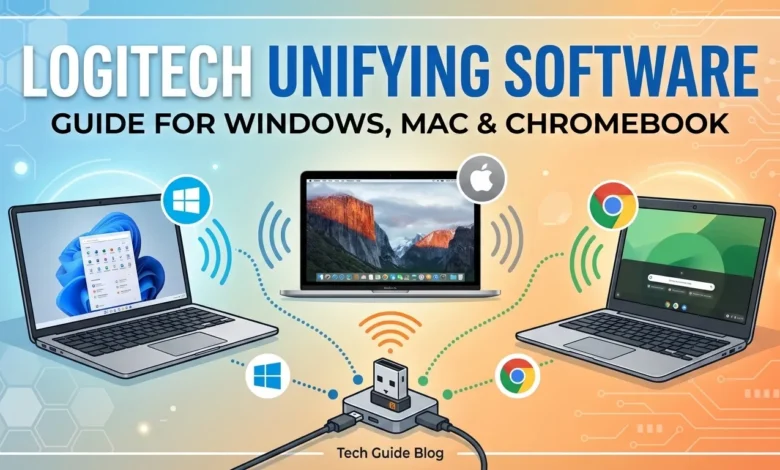
Logitech Unifying Software is a powerful tool that allows users to connect multiple Logitech devices, such as keyboards, mice, and trackballs, to a single USB receiver. This eliminates the need to use multiple USB ports for each device and simplifies device management. For anyone with a home office, shared workspace, or multiple Logitech peripherals, the software provides a seamless experience.
In 2026, Logitech Unifying Software continues to be widely used on Windows 10, Windows 11, macOS, and Chromebook systems. Its ability to pair up to six devices with a single receiver makes it essential for productivity, whether in professional or personal setups. Understanding how to download, install, and troubleshoot the software ensures users get the most out of their Logitech devices.
Table of contents
- How to Download Logitech Unifying Software
- Installing Logitech Unifying Software
- Troubleshooting: Logitech Receiver Not Detecting Devices
- Logitech Unifying Software for Windows 10 and Windows 11
- Logitech Unifying Software for Mac and macOS
- Logitech Unifying Software for Chromebook
- Compatibility and Multi-Device Support
- Using Official Sources for Download
- Common Issues and Fixes
- Advanced Tips for Logitech Unifying Software
- Advantages of Logitech Unifying Software
- Conclusion
- FAQs
How to Download Logitech Unifying Software
Downloading Logitech Unifying Software is straightforward when using official sources. Users should always download from the official Logitech website to guarantee the latest version, full functionality, and security updates. Downloading from third-party websites is risky and may result in outdated software or malware.
For Windows users, the official download process includes selecting your operating system (Windows 10 or Windows 11) and following on-screen instructions. The installer is lightweight and quick to complete. For Mac users, it is important to select the version labeled “for Mac” or “macOS” to ensure full compatibility. Chromebooks also support the software, though some may require downloading via the Chrome Web Store or following special pairing instructions.
Always verify your operating system version before downloading to ensure smooth installation and avoid compatibility issues. In 2026, Logitech updates its software regularly, so keeping the official version ensures you receive all improvements, bug fixes, and security patches.
Installing Logitech Unifying Software
After downloading, installing Logitech Unifying Software is simple and user-friendly. On Windows 10 and Windows 11, you run the installer file and follow the prompts. Mac users need to allow necessary permissions through System Preferences to enable the software to pair devices. Chromebook users may follow instructions provided by Logitech for pairing compatible devices.
Once installed, the software automatically detects unpaired devices and guides users through the pairing process. Logitech Unifying Software supports up to six devices per receiver, allowing keyboards, mice, and trackballs to work together efficiently. The installation process ensures all connected devices are recognized, drivers are updated, and the software functions correctly with the operating system.
For users upgrading from a previous version, it is recommended to uninstall older versions before installing the latest one. This prevents conflicts and ensures all devices are detected properly.
Troubleshooting: Logitech Receiver Not Detecting Devices
One of the most common issues users face is when Logitech Unifying Software does not detect the receiver. This issue can occur due to USB port problems, outdated software, interference, or a misconfigured operating system.
To fix this:
- Ensure the receiver is securely connected to a working USB port. Preferably, avoid USB hubs if possible.
- Update drivers for your operating system Windows 10 Windows 11 or macOS as outdated drivers can prevent detection.
- Restart the computer and relaunch Logitech Unifying Software.
- Remove previously paired devices from the software interface and attempt re-pairing.
- Check for interference from other wireless devices that may disrupt the connection.
Most detection issues are resolved through these simple troubleshooting steps. If problems persist, contacting Logitech support or replacing the receiver may be necessary.
Logitech Unifying Software for Windows 10 and Windows 11
Windows users benefit from Logitech Unifying Software because it supports both Windows 10 and Windows 11 natively. On Windows 10, the software integrates seamlessly with the operating system, automatically managing device drivers and enabling multi-device pairing.
Windows 11 users enjoy additional improvements, including better USB management and enhanced compatibility with high-refresh-rate mice and advanced keyboard features. Logitech continues to provide updates in 2026 to ensure full support for Windows operating systems. Users can download official installers for both Windows 10 and Windows 11 directly from the Logitech website.
Logitech Unifying Software for Mac and macOS
Mac users should download the version labeled “for Mac” or “macOS” to ensure full functionality. After installation, the software may require permission to control devices in System Preferences, especially for newer macOS versions.
Once permissions are granted, Mac users can pair multiple Logitech devices to a single receiver, just like on Windows. This makes it easier to switch between keyboards and mice across multiple devices without changing USB ports. In 2026, Logitech has optimized the software for macOS Monterey, Ventura, and newer systems, ensuring compatibility with all modern Macs.
Logitech Unifying Software for Chromebook
Chromebooks are supported by Logitech Unifying Software, though the process is slightly different than Windows or Mac. Users may need to download pairing software from the Chrome Web Store or follow Logitech’s specific instructions for Chromebook support.
The Chromebook version supports the same multi-device pairing functionality, allowing users to connect multiple keyboards and mice to a single receiver. Chromebook users in 2026 benefit from ongoing software updates that improve compatibility, reduce latency, and enhance device detection.
Compatibility and Multi-Device Support
Logitech Unifying Software allows up to six compatible devices to connect to a single receiver. This includes keyboards, mice, trackballs, and some other Logitech peripherals. Users can mix and match devices as needed, reducing USB clutter and improving workspace organization.
Ensuring compatibility with your operating system is essential. Always check that your version of Windows, macOS, or Chromebook is supported by the latest software release. In 2026, Logitech updates its compatibility list regularly to support new operating system versions and device firmware updates.
Using Official Sources for Download
Using official sources to download Logitech Unifying Software is critical. Official downloads guarantee the latest version, proper functionality, and security. Logitech regularly releases updates to improve device pairing, reduce connection latency, and fix bugs.
Downloading from unofficial websites can lead to outdated software, missing features, or malware. For safety and reliability, always use Logitech’s website or verified sources for downloads.
Common Issues and Fixes
Besides receiver detection problems, users may encounter the following issues:
- Device not pairing: Ensure batteries are charged and the receiver is connected to a working USB port.
- Device disconnects intermittently: Move the receiver closer to the devices or avoid interference from other wireless devices.
- Software crashes or freezes: Reinstall the software and check for operating system updates.
Most of these issues are minor and resolved through troubleshooting steps provided in the software documentation.
Advanced Tips for Logitech Unifying Software
- Pairing multiple devices: Label devices in the software to keep track of which keyboard or mouse belongs to which workspace.
- Updating firmware: Regularly check for firmware updates for both the receiver and devices to ensure optimal performance.
- Backup configuration: Save device settings to quickly restore functionality after system upgrades or hardware changes.
- Use on multiple computers: While one receiver can pair with multiple devices, each receiver is bound to a single computer at a time. Using multiple receivers allows devices to work across different machines.
Advantages of Logitech Unifying Software
Logitech Unifying Software simplifies device management and improves productivity. By allowing multiple devices to pair with a single receiver, it reduces USB port clutter and supports flexible workspace setups. The software ensures devices are recognized quickly and reliably across operating systems.
In professional environments, this is especially useful for remote work, multi-monitor setups, or shared workspaces. Users no longer need to swap USB devices constantly, which saves time and reduces wear on ports and devices. Official software updates in 2026 improve performance, compatibility, and security.
Conclusion
Logitech Unifying Software remains a vital tool for anyone using multiple Logitech devices. It provides seamless multi-device pairing, supports Windows 10, Windows 11, macOS, and Chromebook, and resolves common issues like receiver detection failures. Downloading from official sources ensures safety, compatibility, and the latest features. By following installation guidelines and troubleshooting steps, users can fully utilize the software to enhance productivity and manage devices efficiently in 2026.
FAQs
What is Logitech Unifying Software?
Logitech Unifying Software allows multiple Logitech devices to connect to a single USB receiver. It simplifies device management and reduces the need for multiple ports.
How do I download Logitech Unifying Software for Windows 11?
Visit the official Logitech website, select Windows 11, and follow the download instructions. Ensure you are using the official installer to avoid security risks.
Can I use Logitech Unifying Software on macOS?
Yes, download the version labeled “for Mac” or “macOS” and grant necessary permissions in System Preferences. It works on modern macOS versions.
How do I fix Logitech software not detecting my receiver?
Check the USB port, update drivers, restart your computer, remove and re-pair devices, and avoid wireless interference.
Can I use Logitech Unifying Software on Chromebook?
Yes, follow Logitech’s instructions for Chromebook, which may involve the Chrome Web Store. The software supports multi-device pairing on Chromebook.