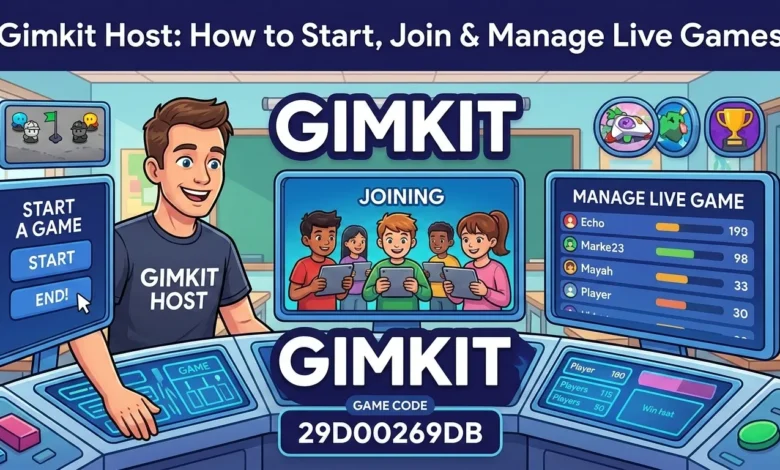
Interactive learning has transformed modern classrooms, and platforms like Gimkit have become central to this shift. Whether you’re a teacher running a quiz competition or a student trying to join a session, understanding how the Gimkit host system works is essential. From launching a live game to managing the host dashboard, this guide explains everything you need to know about hosting, joining, and playing Gimkit effectively.
Table of contents
- What Is a Gimkit Host?
- How to Start a Live Game as a Gimkit Host
- Joining a Gimkit Host Game
- Can You Use Gimkit Host Without Login?
- Understanding the Gimkit Host Dashboard
- Hosting Free Games on Gimkit
- Playing and Hosting Different Game Modes
- Using Kits in Gimkit Host
- How the Home Screen Supports Hosting
- Managing Join Codes Effectively
- Hosting a Live Game for Maximum Engagement
- Common Issues and Troubleshooting
- Why Gimkit Host Is Popular Among Educators
- Conclusion
- FAQs
What Is a Gimkit Host?
A Gimkit host is the person who creates and controls a live game session. Typically, this role belongs to a teacher or facilitator who selects a quiz set (called a Kit), configures game settings, and shares a join code with participants.
Hosting a game gives full control over:
- Game mode selection
- Time limits
- Question order
- Player access
- Real-time monitoring
Unlike passive quiz tools, Gimkit turns learning into an interactive competition where students earn in-game currency for correct answers. The host manages the session from a centralized dashboard.
How to Start a Live Game as a Gimkit Host
Starting a live game is straightforward once you understand the hosting flow.
First, log into your account and navigate to your Kits. A Kit contains the questions and answer sets for your session. After selecting the appropriate Kit, choose the “Play” option and then select a live game mode.
You can customize:
- Game duration
- Power-ups
- Question randomization
- Team mode or individual mode
Once configured, Gimkit generates a join code. Share this code with players so they can enter the game.
When all participants have joined, simply click “Start Game,” and the live session begins instantly.
Joining a Gimkit Host Game
Students or participants can easily join a Gimkit host session using a join code. The process typically involves:
- Visiting the Gimkit join page
- Entering the join code provided by the host
- Typing a display name
- Entering the live game
This streamlined system makes it accessible even for younger students. No complex setup is required to join a session.
Some educators search for ways to join without an account. In many cases, students can participate without full login credentials, depending on the host’s configuration settings.
Can You Use Gimkit Host Without Login?
One common question is whether it’s possible to use Gimkit host without login.
For hosting, a registered account is typically required. Teachers need an account to access Kits, configure settings, and use the dashboard tools.
However, participants joining a live game often do not need full account registration. They can join using only a code, making classroom integration easier and faster.
This flexibility is one reason the platform remains widely used in educational environments.
Understanding the Gimkit Host Dashboard
The Gimkit host dashboard acts as the command center during a live session. It provides real-time visibility into:
- Player scores
- Question performance
- Earnings and upgrades
- Game progress
- Leaderboards
The dashboard allows hosts to pause the game, end it early, or adjust settings mid-session if necessary.
Teachers benefit greatly from these monitoring features because they can immediately identify learning gaps. If a large percentage of players miss a specific question, it signals a topic that may require review.
The dashboard also supports engagement by displaying competitive rankings, keeping students motivated throughout the session.
Hosting Free Games on Gimkit
Many users look for ways to access Gimkit host free features. Gimkit offers limited free functionality, allowing educators to run games without committing to a premium subscription.
Free hosting typically includes:
- Access to basic game modes
- Limited Kit creation
- Core dashboard controls
Premium plans unlock advanced modes and deeper analytics, but the free tier is sufficient for many classroom scenarios.
If you are just starting out, experimenting with free hosting helps you understand how live sessions operate before upgrading.
Playing and Hosting Different Game Modes
A major reason educators enjoy using Gimkit is its variety of game formats. When acting as a Gimkit host, you can choose from multiple game styles that change how students interact with questions.
Some modes emphasize speed. Others focus on strategy, collaboration, or survival mechanics. This variety keeps sessions fresh and prevents fatigue.
For example, team-based games encourage collaboration, while solo competitive modes motivate individual accountability.
Selecting the right game format depends on your classroom goals. If the objective is review before a test, fast-paced repetition works well. For concept mastery, slower strategic modes may be more effective.
Using Kits in Gimkit Host
The foundation of every live session is a Kit. Kits contain:
- Custom questions
- Multiple-choice answers
- Images (if needed)
- Correct answer indicators
As a host, you can create your own Kits or use publicly shared ones. Creating custom Kits ensures alignment with your curriculum.
Before launching a game, review the Kit for clarity and accuracy. Well-designed questions improve engagement and reduce confusion during gameplay.
How the Home Screen Supports Hosting
The home Gimkit host interface is designed for simplicity. From the homepage, users can:
- Access recent Kits
- View previous game reports
- Start new live games
- Explore public content
The clean layout reduces friction, allowing teachers to launch sessions quickly during class without wasting instructional time.
This intuitive home environment contributes significantly to the overall user experience.
Managing Join Codes Effectively
A join code is essential for participants entering a session. As a host, it’s important to:
- Display the code clearly
- Confirm all students have entered
- Monitor duplicate or inappropriate names
Some teachers project the join page on a classroom screen, allowing students to confirm entry before the game begins.
If a player disconnects, they can typically re-enter using the same code while the session remains active.
Hosting a Live Game for Maximum Engagement
When running a live session, the role of the Gimkit host extends beyond technical setup. Effective hosting includes:
- Explaining rules clearly before starting
- Monitoring student engagement
- Pausing to clarify misunderstood questions
- Reviewing results afterward
The most successful live games combine competition with instructional reinforcement. After a session ends, reviewing incorrect answers as a class strengthens retention.
Live hosting transforms traditional quizzes into interactive learning events rather than passive assessments.
Also Read: Snapchat Planets Meaning, Order & Best Friends Guide
Common Issues and Troubleshooting
While Gimkit is user-friendly, occasional issues may arise.
Players unable to join often mistype the join code. Always verify the code displayed matches what students enter.
If the dashboard appears frozen, refreshing the browser typically resolves the issue.
Internet stability plays a critical role. For best performance, ensure reliable connectivity before starting a live game.
Understanding these minor troubleshooting steps ensures smooth hosting experiences.
Why Gimkit Host Is Popular Among Educators
The growing popularity of the Gimkit host system can be attributed to several factors:
- Gamified learning increases participation
- Real-time feedback supports assessment
- Simple join process reduces technical barriers
- Dashboard analytics enhance instructional decisions
- Flexible game modes maintain interest
Educators increasingly prioritize engagement and interactivity. Gimkit bridges the gap between entertainment and learning in a structured format.
Conclusion
Becoming a successful Gimkit host involves more than just starting a game. It requires understanding Kits, managing join codes, using the dashboard effectively, and facilitating interactive learning experiences.
From launching a live game to reviewing results afterward, the hosting tools provide full control over classroom engagement. Whether you’re using free features or advanced premium options, Gimkit’s hosting system makes educational gameplay accessible and efficient.
With the right preparation and strategy, hosting a Gimkit session can transform ordinary lessons into dynamic, memorable learning experiences.
FAQs
How do I join a Gimkit host game?
Visit the join page, enter the code provided by the host, choose a display name, and enter the session.
Can I host a Gimkit game for free?
Yes, basic hosting features are available in the free version, though advanced modes require a subscription.
Do students need accounts to join?
Typically, no. Students can join using a code without full login credentials, depending on host settings.
What is the Gimkit host dashboard used for?
It allows hosts to monitor scores, control gameplay, and manage participants in real time.
Can I host a live game from home?
Yes. As long as you have internet access and an account, you can host live sessions from anywhere.