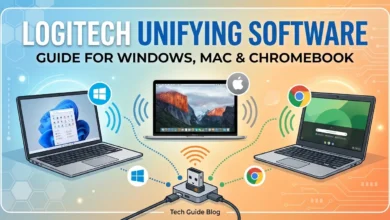
If you use Logitech wireless keyboards or mice, you have likely heard of Logitech Unifying Software. I have installed it on multiple systems over the years. It remains one of the simplest ways to manage Logitech wireless devices through a single USB receiver.
Many users search for download options because they want to pair a new device, reconnect an old one, or fix a detection problem. Others want to confirm compatibility with Windows 11, macOS, or Chromebook. This guide covers everything clearly and directly.
Table of contents
- What Is Logitech Unifying Software and How It Works
- Logitech Unifying Software Download Official and Free Version
- Logitech Unifying Software Download for Windows 11
- Logitech Unifying Software Mac Download Guide
- How to Install Logitech Unifying Software Step by Step
- Logitech Unifying Software Not Detecting Receiver – Fix Guide
- Is Logitech Unifying Software Available for Chromebook
- Common macOS Issues and How to Fix Them
- FAQs
What Is Logitech Unifying Software and How It Works
Logitech Unifying Software allows you to connect compatible Logitech wireless devices to one small USB receiver. Logitech calls it the Unifying receiver. It usually has an orange star logo.
Instead of plugging in separate receivers for each device, you use one receiver for up to six compatible devices. I find this especially useful when working with limited USB ports on laptops.
The software manages pairing. It identifies devices. It handles secure connections between the receiver and peripherals. Without the software, pairing new devices becomes difficult.
Logitech Unifying Software Download Official and Free Version
Many users search for a free download. The software is completely free. Logitech provides it directly on its official website.
I always recommend downloading the official version only from Logitech’s support page. Avoid third-party download sites. They often bundle unnecessary software or outdated files.
The official download ensures you receive the latest secure version. It also guarantees compatibility with current operating systems like Windows 11 and macOS.
The installation file is small. The process completes quickly on most systems.
Logitech Unifying Software Download for Windows 11
Windows 11 fully supports Logitech Unifying Software. I have installed it on multiple Windows 11 systems without compatibility issues.
To complete the download for Windows 11, visit Logitech’s official support site and select the Windows version. Make sure your system is updated before installing.
After downloading the installer file, double-click it. Follow the on-screen prompts. The setup wizard guides you through device pairing.
Windows 11 usually recognizes the receiver instantly. If it does not, try another USB port. In most cases, the problem resolves immediately.
Logitech Unifying Software Mac Download Guide
Mac users often search specifically for Mac download options. Logitech provides a dedicated macOS version.
The software supports modern macOS versions. I have tested it on both Intel-based Macs and Apple Silicon systems. Installation remains straightforward.
After downloading the mac version, open the .dmg file. Drag the installer to Applications. Launch the program and follow the pairing instructions.
macOS may request USB or input monitoring permissions. Grant them when prompted. Without these permissions, the software may not detect devices properly.
How to Install Logitech Unifying Software Step by Step
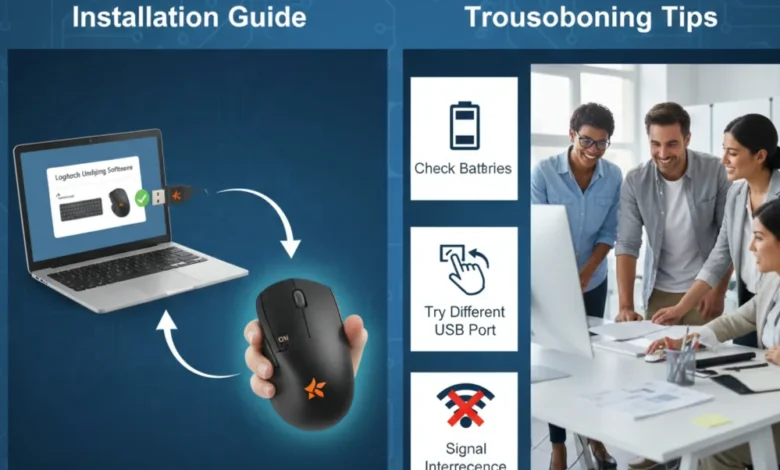
Installation is simple on both Windows and Mac. First download the correct version from Logitech’s official website. Double-click the installer file. Accept the license agreement. Follow the guided instructions.
When prompted, insert the Unifying receiver into a USB port. The software scans automatically. Turn on the device you want to pair. The program detects it within seconds.
I always recommend restarting your system after installation. While not always required, it ensures driver stability and full device recognition.
Once paired, the device connects automatically in future sessions.
Logitech Unifying Software Not Detecting Receiver – Fix Guide
One of the most common issues involves not detecting the receiver. I have seen this happen for several reasons.
First, check the USB port. Faulty ports cause most detection failures. Switch to another port and retry.
Second, verify that the receiver is a genuine Unifying receiver. Some Logitech devices use non-Unifying nano receivers that are not compatible with this software.
Third, update your operating system. Outdated Windows or macOS versions sometimes block proper driver installation.
On macOS, open System Settings and review security permissions. Ensure the software has input monitoring access. Without it, pairing may fail.
If the issue persists, uninstall the software, restart the system, and reinstall the latest official version.
Is Logitech Unifying Software Available for Chromebook
Many users ask about for Chromebook. Chrome OS does not support traditional desktop software installation like Windows or macOS.
In most cases, Chromebook users do not need the software. Compatible Logitech devices often pair automatically through the receiver without additional setup.
However, advanced pairing management features are limited on Chromebook. If you need to pair multiple devices manually, using a Windows or Mac system first may be necessary.
Common macOS Issues and How to Fix Them
macOS introduces stricter security controls compared to older systems. I have seen permission restrictions block from functioning correctly.
If pairing fails, open System Settings. Navigate to Privacy and Security. Check Input Monitoring and Accessibility permissions. Ensure the Logitech software appears and is enabled.
Another common issue involves USB-C adapters. Some low-quality adapters prevent proper detection. Switching to a direct USB port often solves the issue immediately.
Also Raed: Software Testing Basics for Beginners: Complete Guide
Conclusion
Logitech Unifying Software remains one of the most practical tools for managing Logitech wireless devices. It simplifies connectivity by allowing multiple compatible keyboards and mice to operate through a single receiver. This reduces USB clutter and improves workspace efficiency.
The download process is straightforward. The software is free. Windows 11 and macOS users can install it within minutes using the official Logitech website. Most pairing issues resolve quickly when you follow proper installation steps and check system permissions.
FAQs
Is Logitech Unifying Software free to download?
Yes, it is completely free. You can download the official version directly from Logitech’s support website without paying any fee. Always use the official source to avoid outdated or unsafe files.
Is Logitech Unifying Software compatible with Windows 11?
Yes it works with Windows 11. The latest version supports Windows 11 without major compatibility issues. Make sure your system is updated before installing to ensure smooth performance.
How do I complete the Logitech Unifying Software Mac download?
To complete the Mac download, visit the official Logitech website and select the macOS version. Download the file, open the installer, and follow the on-screen instructions. Grant any required permissions during installation to ensure proper device detection.
Why is not detecting my receiver?
If Logitech Unifying Software is not detecting the receiver, check your USB port first. Try a different port to rule out hardware issues. Also confirm that you are using a compatible Unifying receiver. On macOS, review privacy and input monitoring permissions in system settings. Updating your operating system can also resolve detection problems.
Does this work on Chromebook?
Chromebook does not support installing the traditional way. However, many compatible Logitech devices connect automatically through the Unifying receiver without requiring additional software. Advanced pairing management features may not be available on ChromeOS.